
Screel in Unreal Engine
Connect a Level Sequence in Unreal Engine to a Screel project with the Screel plugin. Markers on a Screel track become scenes, and the plugin captures each marker’s still key as the scene’s still. The clips you render in Unreal upload to Screel, where you refine and animate them. The plugin has no embedded web view; Screel itself opens in your system browser.
Watch the walkthrough
Section titled “Watch the walkthrough”This video links a Level Sequence to a project, asks Manan about a character and refines the film to photoreal.
What the plugin does
Section titled “What the plugin does”- Markers become scenes. You place markers on a Screel markers track in Sequencer. Each marker starts a scene and owns its length. When you release a marker after an edit, the plugin captures its still key, uploads it as the scene’s still and syncs the marker. See Markers and sync.
- Frames go to Screel. Send captures the viewport or the frame under the playhead and drops it into the project. It lands in the gallery, a whiteboard or a storyboard panel. From Sequencer, it can also become a scene’s still. See Send frames.
- Clips go to Screel. Render clip to Screel renders a marker span through Movie Render Queue and uploads it as the scene’s clip. Generated clips and final renders stay in Screel. See Clips and renders.
Requirements
Section titled “Requirements”- Unreal Engine 5.6, 5.7 or 5.8 on Windows. The plugin is Win64 only.
- A Screel account.
Install the plugin
Section titled “Install the plugin”Each zip holds the plugin built for one engine version.
Version 1.0.0, released 3 November 2026
Click a hash to copy its check command. Run the command in PowerShell. It prints True when the zip matches. If you saved the zip outside Downloads, change the path. All checksums
- Close the Unreal Editor.
- Download the zip for your engine version.
- Extract the zip into your project folder, the folder that holds your
.uprojectfile. The plugin lands inPlugins/Screel. - Open your project.
- Go to Edit → Plugins and enable Screel.
- Restart the editor.
A Screel section appears in the level editor toolbar.
To update the plugin, close the editor, delete Plugins/Screel and extract the new zip in its place. When a new version is out, the editor shows a notice with a Get update link to this page.
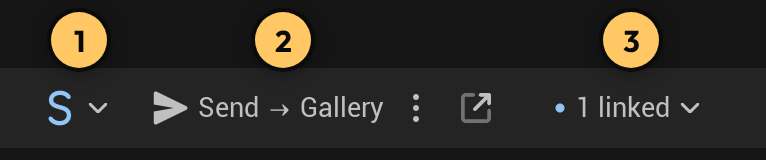
- The Screel menu, shown as an S: your account, your linked sequences and settings.
- Send, with the send options menu (⋮) next to it. The button names the place the viewport goes, for example Send → Gallery.
- The status line. Click it to open a linked sequence or one of its scenes.
The Open button, next to the send options, opens the linked project in Screel. It is disabled while no sequence is linked. Hover over any of these buttons for its name.
The level toolbar covers your account and the viewport. Everything about one sequence is in the S menu at the start of the Sequencer toolbar. The + on the Screel markers track holds the tools for every marker on the track. A right-click on a marker holds the tools for the clicked or selected markers.
Sign in
Section titled “Sign in”- In the level toolbar, open the Screel menu and choose Sign in.
- Your system browser opens the Screel sign-in page. Sign in, or create an account, and approve the access request.
- Return to Unreal. The status line no longer reads Signed out, and its tooltip names your account.
The plugin listens for the browser’s reply on 127.0.0.1, using the first free port from 47391 to 47395. It waits five minutes for you to finish in the browser. Cancel sign-in in the same menu stops the wait. A stopped sign-in is not a failure.
A failed sign-in shows one plain sentence in the status line. For example, when Screel refuses the plugin version, it reads “This plugin version can no longer sign in. Update the Screel plugin.”
Once you are signed in, the Account section of the Screel menu shows Signed in as with your name.
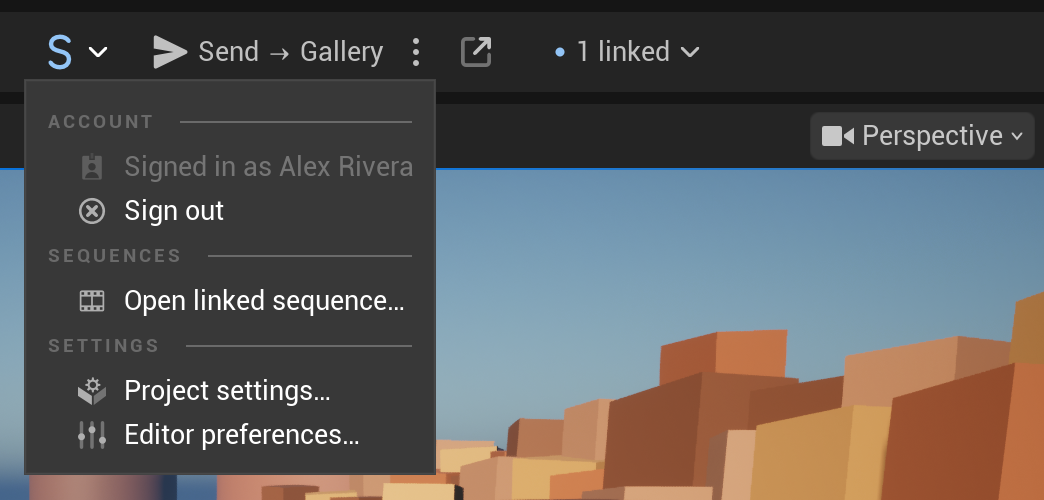
The editor stays signed in across launches, and the next launch signs in silently. When Screel is unreachable at launch, the plugin keeps your saved sign-in and retries in the background; the status line reads “Screel unreachable — retrying”.
When Screel rejects the saved sign-in, the status line reads Signed out. Choose Sign in again. Choose Sign out in the Screel menu to sign out on this machine. Sequence links stay.
To sign in without a browser, for example for scripted jobs, use an API key. See Sign in with an API key.
Link a sequence
Section titled “Link a sequence”A link ties one Level Sequence to one Screel project. Open the Level Sequence in Sequencer first. The link commands are in the Sequencer toolbar, not in the level toolbar.
Where the commands are depends on the sequence:
- A sequence with a Screel markers track shows Create project… and Link to existing project… in the Sequencer toolbar. They are in the Project section of the Screel menu (the S).
- A sequence without the track shows a Link to Screel button in the Sequencer toolbar. It offers the same two commands and Add track only. Both link commands add the track. Add track only adds the track without a link.
- The Not linked chip in the Sequencer toolbar opens the same list when you click it.
Link to an existing project
Section titled “Link to an existing project”- Open the Level Sequence in Sequencer.
- In the Sequencer toolbar, open Link to Screel or the Screel menu and choose Link to existing project….
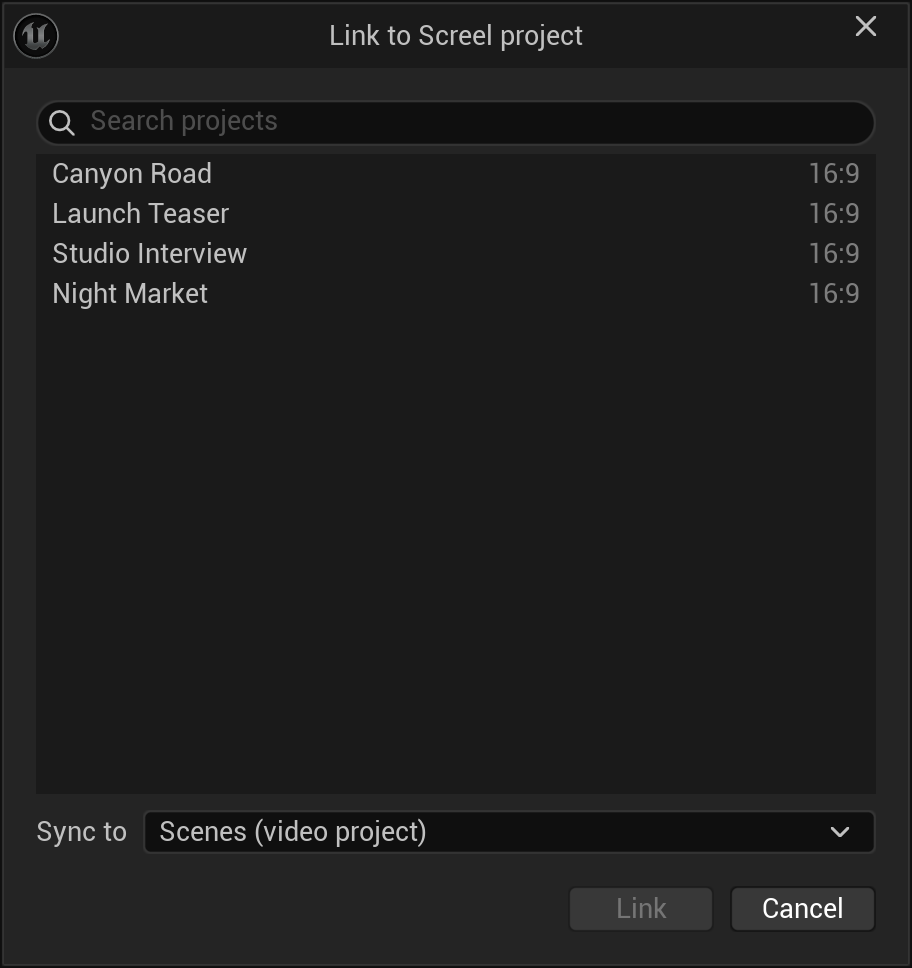
- In the Link to Screel project dialog, pick the project. Search projects narrows a long list.
- Under Sync to, choose Scenes or Storyboard only.
- Choose Link.
Create a project for the sequence
Section titled “Create a project for the sequence”- Open the Level Sequence in Sequencer.
- In the Sequencer toolbar, open Link to Screel or the Screel menu and choose Create project….
- In the Create Screel project dialog, enter the Project name and choose the Aspect ratio. Captures and clip renders use it.
- Under Sync to, choose Scenes or Storyboard only.
- Under Seed markers, choose how to start the track: One marker per camera cut, One marker for the whole sequence, or No markers.
- Choose Create and link.
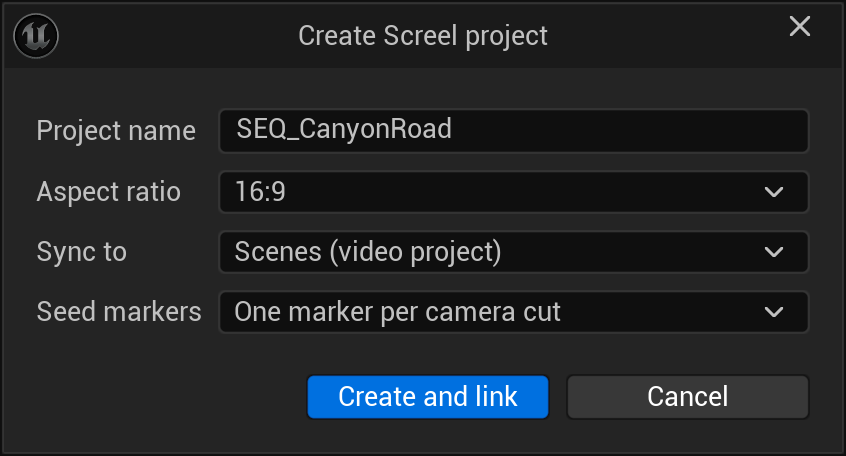
Scenes makes one scene per marker. Storyboard only sends pictures to a storyboard document.
Open or unlink a linked sequence
Section titled “Open or unlink a linked sequence”Once the sequence is linked, the Project section of the Sequencer Screel menu offers Open in Screel and Unlink….
Several sequences, one project
Section titled “Several sequences, one project”Several sequences can link to the same project. To open one, click the status line, or choose Open linked sequence… in the Sequences section of the level toolbar’s Screel menu. A list of the linked sequences of your Unreal project opens, with the project and level of each.
In Editor Preferences → Keyboard Shortcuts, the command Open linked Screel sequence can take a shortcut. Open in Screel in the same Screel context has the default shortcut Ctrl+Alt+O.
- Type in Search sequences, projects, levels, scenes to narrow the list. Every word you type must match a sequence, project, level, scene number or scene title.
- A search also lists the matching scenes of each sequence, with the scene start and length. Sign in to see scenes in the list.
- Press the Up and Down arrow keys to select a row, then press Enter. You can also click a row. Esc closes the list.
A sequence opens in its level. If the open level has unsaved changes, Unreal asks you to save them first. A scene opens its sequence and moves the playhead to the scene’s marker.
Unlink… clears the link of the focused sequence only. Your scenes stay in Screel.
Read the status line
Section titled “Read the status line”The status line in the level toolbar shows your session and the sync of the open sequence. It reads one of these:
- Waiting for shaders… while marker captures wait for shaders to compile.
- Signed out.
- The current sign-in step, such as Waiting for browser sign-in…, while you sign in.
- Screel unreachable — retrying when the editor cannot reach Screel.
- Reconnecting… when the live connection to Screel dropped.
- Rendering clips… while Unreal renders clips for Screel.
- The sync progress, such as Capturing 3/12, while a sync runs.
- Sync failed when the last sync failed. The S and the dot turn red, and the tooltip shows the error. While a sync or a clip render runs, they turn amber.
- N to sync when some pictures did not upload.
- 1 linked, 2 linked · none open or Not linked, when you are signed in and nothing runs. It counts the linked sequences of your Unreal project.
Hover over it for your account, the error of the last sync and the project Send uses while no sequence is linked. If another Unreal user has the sequence open, the tooltip names them.
Click the status line to open a linked sequence or one of its scenes. See Several sequences, one project.
The sync state, the count of markers to sync and upload warnings are in the status chip of the Sequencer toolbar. See Markers and sync.
When a newer plugin version exists, a toast says “Screel <version> is available.” with Get update. When Screel requires the update, the notice “Update Screel to <version> to keep syncing.” stays on screen and syncing stops until you update.