
Make your first video
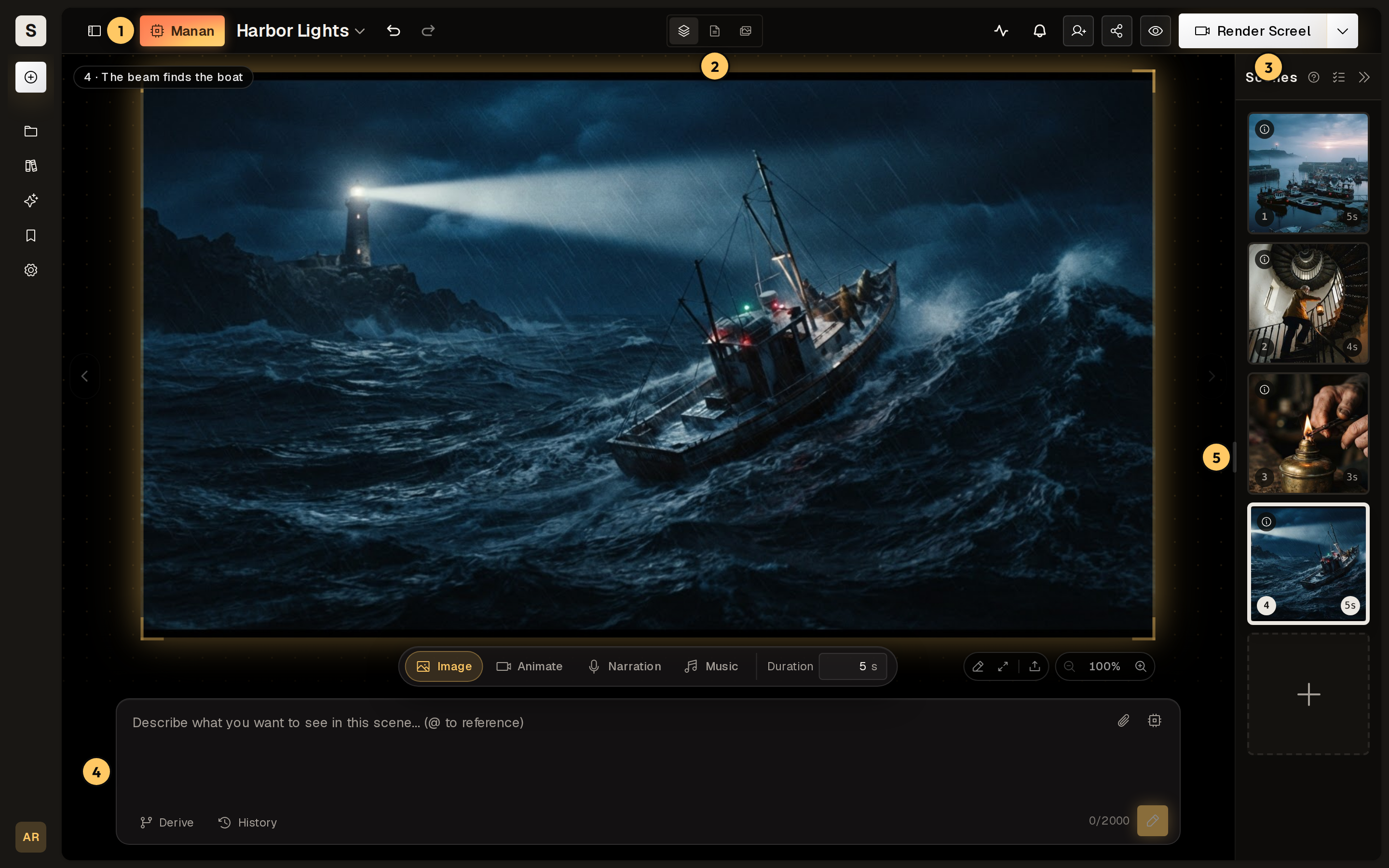
Make a short video from an idea: write a script, turn it into scenes, generate the media and render. The screenshots show Harbor Lights, a sample project about a lighthouse keeper.
Create a project
Section titled “Create a project”- Sign in at screel.ai.
- Click New project.
- Enter the Project Name.
- Pick the Aspect Ratio.
- Click Create Project.
The editor opens on the new project.
Write the script
Section titled “Write the script”Click Script in the view switcher, then write your story. To start from a structure, type / at the start of a block and pick Story template.
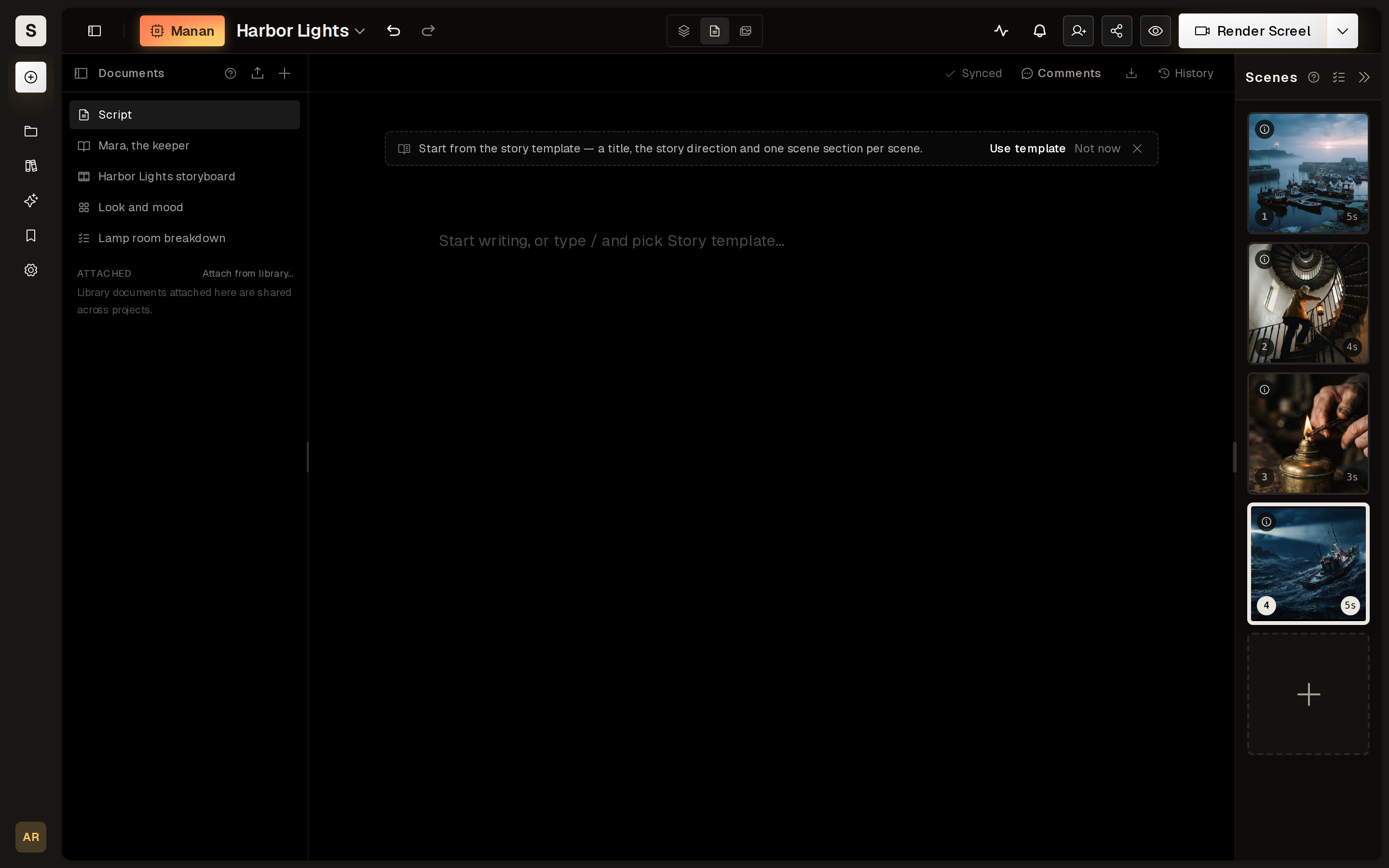
Manan can also write it. Click Manan, then ask for it: Write a script about a lighthouse keeper who finds a message in a bottle. Manan writes the script document and nothing else.
Turn the script into scenes
Section titled “Turn the script into scenes”Ask Manan: Create scenes from my script. Manan creates the scenes and links them to the script. It also writes each scene’s picture prompt and narration. This step spends no credits.
To add a scene yourself, select text in the script, click To scene, then click New scene from selection. See From script to scenes.
Generate the stills
Section titled “Generate the stills”- Click a scene in the Scenes list.
- Click Image in the composer.
- Check the prompt.
- Press Ctrl/Cmd+Enter.

Repeat this for each scene, or ask Manan: Generate a still for every scene. Generation spends credits, so Manan shows an approval card first.
To keep a character the same across scenes, make a reference document first. See Sheets and the image bank.
Add clips, narration and music
Section titled “Add clips, narration and music”Each of these is optional, and a scene without a clip renders as its still.
- To animate a scene, write the motion in the Animate tab. See Clips.
- To add a spoken line, generate it in the Narration tab. See Narration.
- To add background music, write a brief in the Music tab. See Music.
Render the video
Section titled “Render the video”- Click Preview in the top bar to watch the project.
- Click Render Screel.
A render spends no credits. When it finishes, the button reads View Screel and plays the video. To download or share it, see Render and exports.