
Render and exports
Compose a project’s final video, choose how it looks and sounds, and save documents as files.
Start a render
Section titled “Start a render”A render is the final video Screel composes from a project’s scenes and audio. Renders are MP4 files.
- Click Preview in the top bar to watch the project first.
- Click Render Screel in the top bar.
The button shows the phase and the progress while the render runs. Click it during a render to open Cancel Render?, then pick Cancel Render or Keep Rendering.
A render spends no credits, and it needs edit access to the project. It needs at least one scene with a still or a clip, and it skips scenes with neither. A project holds one render at a time, so a second request follows the running render.
When nothing has changed since the last render, the button reads View Screel and plays that render. Change a scene, the music, the branding or a render setting, and the button reads Render Screel again.
A project linked to Unreal with two or more sequences also has a Render scope menu beside the button. It offers All sequences or one sequence.
Render settings
Section titled “Render settings”Open the settings in one of these ways:
- Click the project name, then Rendering….
- Click the caret on the render button, then the gear in Renders.
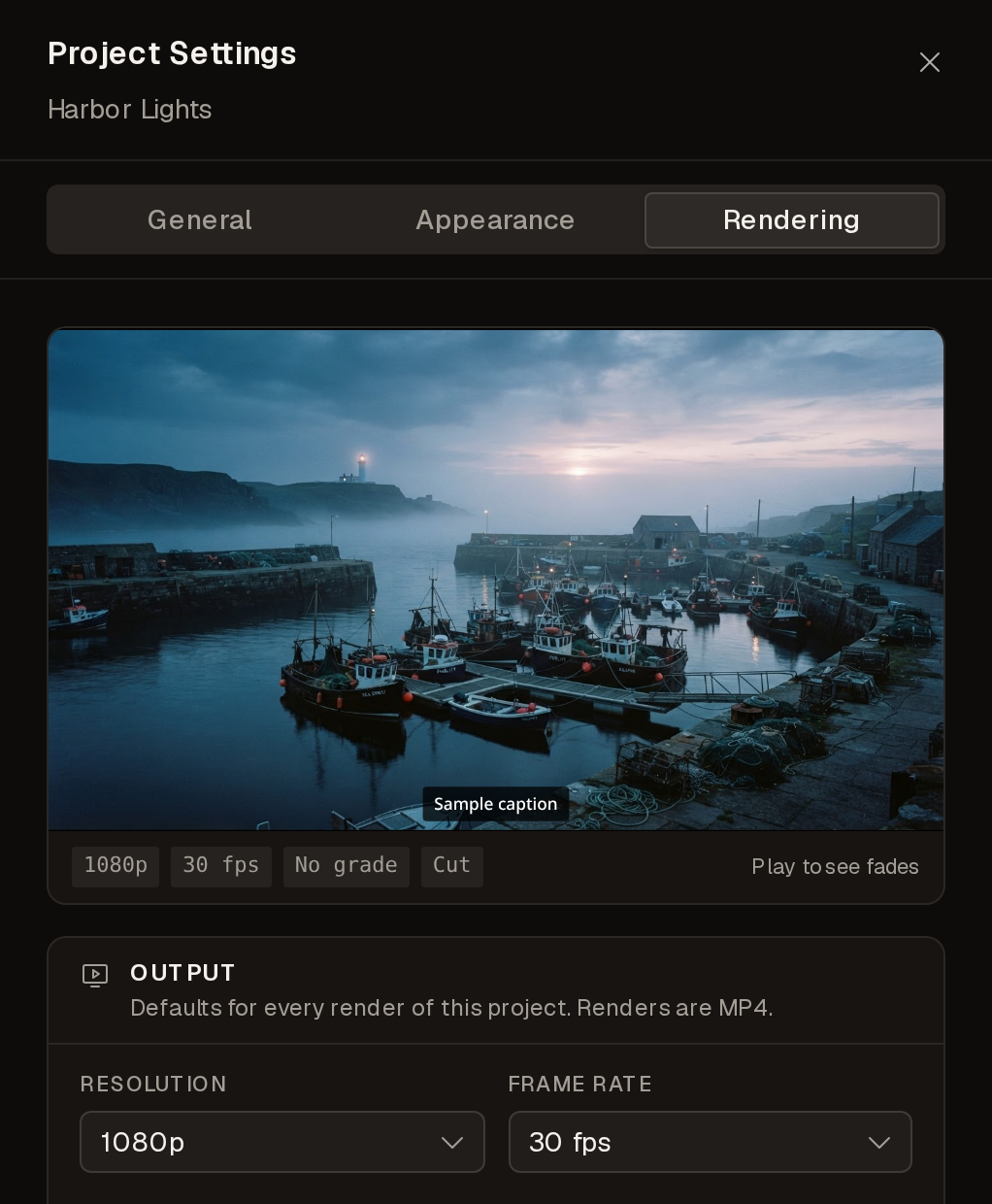
The settings apply to every render of the project. A preview frame at the top of the panel shows the look, and playing it shows the fades. Click Save changes to keep your edits. Closing the panel with unsaved edits asks you first.
Output
Section titled “Output”| Setting | Options |
|---|---|
| Resolution | 720p, 1080p, 1440p, 2160p. The default is 1080p. |
| Frame Rate | 24 fps, 30 fps, 60 fps. The default is 30 fps. |
| Quality | Draft, Standard, High. The default is Standard. |
| Scene source | What each scene shows. Auto and Final are always there. |
| Compare with | Off, or a second source beside or under the first. |
| Comparison layout | Auto, Side by side, Stacked. It shows when Compare with is on. |
1440p, 2160p, 60 fps and High are not available on every account. On those accounts the options show disabled, and a saved value falls back at render time to 1080p, 30 fps or Standard.
Auto shows a refined clip, else styled keyframes. A scene with a previs shows its keyframes, else the previs. Other scenes show the final picture. Final shows a scene’s clip, else its still.
Keyframes, Previs and the layer entries show on a project linked to Unreal and in Advanced mode. A note below the field counts the scenes that lack that source. Those scenes show their final picture. For the details of each source, see Preview and render sources.
| Setting | Options |
|---|---|
| Background Fill | Blurred or Black. Fills the space around media that does not match the aspect ratio. |
| Motion on Stills | Off, Subtle (a slow zoom and drift) or Medium (a clearer zoom and drift). |
| Color Grade | None, or one of the presets. The preview approximates the grade, and the render applies the full LUT. |
| Transition | Cut or Fade through black. Transition Length runs from 0.2 s to 1 s. |
| Fade In, Fade Out | Seconds of black at the start and the end, up to 5 s. 0 turns the fade off. |
Captions
Section titled “Captions”These settings style the captions of the whole project. Turn captions on or off for each scene with Captions in the Narration tab.
| Setting | Options |
|---|---|
| Style | Box, Outline or Bar. |
| Size | Small, Medium, Large. |
| Position | Bottom or Top. |
| Text Color | Any color, from a picker or a hex value. |
| Fade captions in | Each caption fades in over 150 ms. |
| Setting | What it does |
|---|---|
| Music video audio | Music plays over the whole video, with no clip sound. |
| Normalize loudness | Levels the final mix to -14 LUFS. |
| Duck music under narration | Lowers the background music while narration plays. It is off with Music video audio on. |
| Music Fade-Out | Fades the music at the end, up to 10 s. 0 turns the fade off. |
| Start music at | The second of the track where the video starts. |
The renders list
Section titled “The renders list”Click the caret on the render button to open Renders. It lists every render of the project with Output, Length and When. Latest and Oldest set the order, and the Resolution chips filter the list. The footer counts the renders and their size.
Click a row to expand it. The row shows Started, Finished, Size, Aspect and the Settings that render used. A failed render shows its error. A completed render offers these actions:
- Play opens the player.
- Download saves the video.
- Upscale makes a larger copy.
- Publish adds the project’s current render to the showcase, visible to everyone.
- Share opens Public link, with Copy link and Copy embed.
- Open in new tab shows the video on its own.
Upscale shows only on accounts with that capability. It offers Full HD, 2K and 4K, each with its credits. An upscaled render shows an HD tag, and its sizes show under Upscaled.
On an organization project, Publish and Share stay off until an organization owner or admin allows them.
Export a document
Section titled “Export a document”An export is a file download of a document, sheet or board. The export uses the last saved copy, so an unsaved edit is not in the file.
| Document | Where | Formats |
|---|---|---|
| Script and reference documents | The Export button in the status strip | Markdown, Plain text, Word, PDF |
| Storyboard | Export in the header | PDF pages, PNG pages, Word shot list, CSV shot list, Excel shot list |
| Breakdown | Excel in the header | Excel, with the accepted rows only |
| Whiteboard | Ask Manan. The file shows in Jobs. | PNG |
| Sheet | Export as image in the sheet’s options menu | PNG |
If Screel cannot fetch a picture for a file, a message counts the missing pictures.
Storyboard page settings
Section titled “Storyboard page settings”Export on a storyboard opens Export storyboard, with a live preview. These settings apply to PDF pages and PNG pages only:
- Style: Strips, Grid, Board or Contact sheet.
- Panels per row: 1 to 5. Board has no such choice.
- Paper: A4 or Letter.
- Orientation: Landscape or Portrait.
- Margin and Gap, in points.
The page settings save with the storyboard. With view-only access they do not save.
Export from a project
Section titled “Export from a project”Screel has no single download of a whole project. These actions cover the parts:
- Download on a render saves the video. See The renders list.
- Export breakdowns (Excel) in the + menu of the Documents list saves one workbook for every breakdown of the project. It shows when the project has a breakdown.
- Download in the gallery saves single pictures and clips.