
The library
Keep documents outside a project and reuse them across your projects.
What the library holds
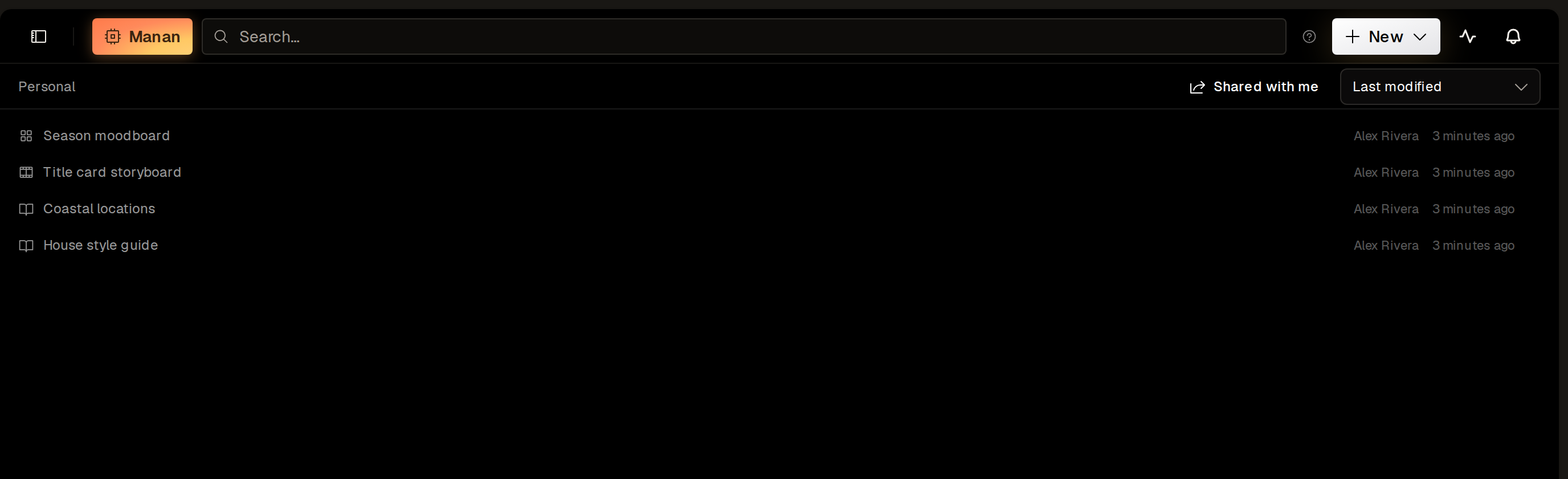
Section titled “What the library holds”The library holds documents, storyboards, whiteboards, breakdowns, workflows and folders outside a project. Click Library in the app sidebar to open it.
- Personal holds your own documents.
- Your organization’s library holds documents for its members, under the organization’s name.
- A workspace section of that library holds documents for the members of one workspace.
- Shared with me lists the documents that other people share with you.
Work in the library
Section titled “Work in the library”Click New to add a New document, New storyboard, New whiteboard, New breakdown or New folder. The menu has no workflow item.
Search… finds documents by title across every folder. The sort menu starts at Last modified, and it also offers Least recently modified, Name A–Z, Name Z–A, Newest, Oldest and Kind.
Open a row’s menu to act on a document. Your access decides which items show:
- Open opens the document.
- Rename and Move to… need edit access.
- Attach to project… and Copy to project… need view access.
- Use in project… shows on a workflow.
- Share…, Visibility… and Delete need admin access.
- Copy link copies a link to the document.
To see the facts about a document, open it and click the info button in its header. The popover shows Owner, Modified, Created, Comments, Used in and Shared with. Used in counts the projects that hold the document.
What runs in the library
Section titled “What runs in the library”A library document runs outside a project, so it has no scenes, mentions, uploads or generation. The one exception is New breakdown, which asks you to upload its source picture. To use the project features, attach the document to a project or copy it into one.
Manan runs in library scope here. In Default mode, Manan asks for your approval before it writes to a library document.
Move, attach or copy
Section titled “Move, attach or copy”| Action | What it does | What happens to the original | What later edits reach |
|---|---|---|---|
| Move | Puts a project document in a library | It is the same document, with its image bank, comments and history | The project, which keeps the document under Attached |
| Attach | Links a library document to a project | It stays in its library | Every project that holds the document |
| Copy | Makes a new project document from a library document | It stays in its library | Only the side you edit: the copy and the original do not change each other |
Move a document to the library
Section titled “Move a document to the library”- Open the row menu of the document in the project’s Documents list.
- Pick Move to library.
- Pick Personal or Organization.
A move makes no copy. The same document keeps its image bank, comments and history. It leaves the project’s folder and stays in the project under Attached. Project collaborators can read it there, and editing follows the document’s own access.
The script and instructions documents, including Memory, cannot move.
There is no reverse of a move. To get a project document back, copy the attached document into the project, then detach the attached one.
Attach a document to a project
Section titled “Attach a document to a project”An attachment is a live link. One document serves every project that holds it, so edits show everywhere.
- In the project, click Attach from library… above the Attached list, then click Attach on a row.
- In the library, pick Attach to project… in the row menu, then pick a project.
You need edit access to the project and view access to the document. The Library chip marks an attached document. Project collaborators can read it, and editing follows the document’s own access.
You cannot delete an attached document from the project. Hover its row and click Detach instead. Detach removes only the link and asks for no confirmation.
Manan changes an attached document only when you ask. Type @ in a prompt to use it as a reference document.
Duplicating a project keeps its attachments as links to the same documents.
Copy a document into a project
Section titled “Copy a document into a project”A copy is an independent project document. You can make one in two ways:
- In the library, pick Copy to project… in the row menu. Copy to a project opens. Click Copy on a project.
- In the project, hover a row under Attached and click the Copy to this project button.
To copy a workflow, pick Use in project… in the library. It also makes a copy.
You need edit access to the project. View access to the document is enough. A copy spends no credits, and a project holds up to 500 documents.
The copy is a new document with the text and the image bank of the original. It also takes the panels, whiteboard items or breakdown rows, and it starts at a fresh version. These parts differ from the original:
- Comments, version history and suggestions stay with the original.
- The copy drops scene links.
- Breakdown rows lose their links to reference documents. Make reference documents links them again by name.
The copy keeps its pictures after you delete the original.
An attachment stays after the copy. If you want only the copy, detach the attached document by hand.
Share a document
Section titled “Share a document”- Pick Share… in the row menu.
- Type a name or an email address.
- Pick View or Edit.
- Click Add.
The email address must belong to a Screel account.
Visibility… sets who can see an organization document. It isn’t available on every account.
- Organization lets every member view the document.
- Workspace limits it to the members of one workspace.
- Private limits it to the people you share it with.
Admins and the owner always keep access.
Delete a document
Section titled “Delete a document”You delete a document in the library, and you need admin access to it. Pick Delete in the row menu.