
The editor at a glance
Find your way around the Screel editor. The editor opens when you open a project at screel.ai.
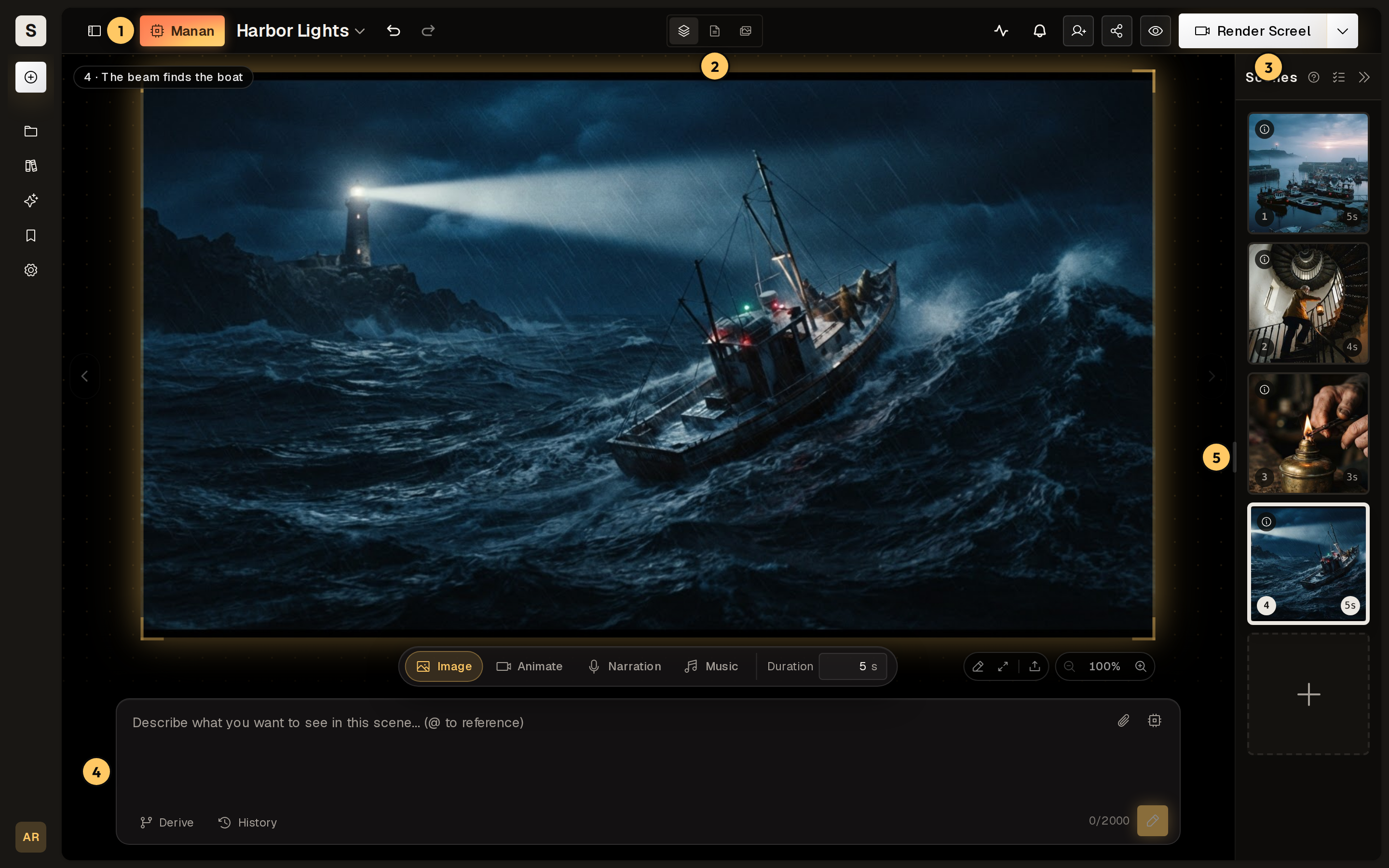
- The Manan button opens the chat with Manan, the agent that works on the project with you.
- The view switcher moves between Canvas, Script and Gallery.
- Render Screel composes the scenes into a video. The menu beside it lists your renders.
- The composer writes the prompt for the scene on the canvas.
- The Scenes list shows every scene in order.
How a project fits together
Section titled “How a project fits together”A project is one video. It holds:
- Scenes: the units of the video. Each scene has a still, an optional clip, a caption that doubles as its narration, a duration and narration settings. See Scenes and versions.
- Documents: the script and the reference documents beside it, such as a character, brand notes, standing instructions and skills. See Script and documents.
- Media: every picture and clip the project owns, including earlier versions. See The gallery.
- Renders: every finished video, with download and share links. See Render and exports.
A typical project moves from script to scenes, from scenes to stills and clips, and from there to a render. You can start at any point, and Manan can do any of these steps for you.
The three views
Section titled “The three views”| View | What you do there |
|---|---|
| Canvas | Work on one scene at a time. The canvas shows its still or clip, and the composer sits below. |
| Script | Write the script and other documents. The Documents list sits on the left. |
| Gallery | Browse every picture and clip of the project, and reuse them on scenes. |
The Scenes list stays on the right in all three views, and the Manan panel opens on the left.
The canvas
Section titled “The canvas”The canvas shows the selected scene. Use the arrows at its sides to move between scenes. Press V to switch between the still and the clip.
The controls under the frame draw markup on the picture, open it in Fullscreen, replace it with an upload, and zoom. Choose Fit to view to reset the zoom.
The composer
Section titled “The composer”The composer tabs decide what you generate for the scene:
| Tab | What it makes |
|---|---|
| Image | The scene’s still |
| Animate | A clip from the still |
| Narration | The scene’s spoken line |
| Music | The project’s background music |
Type @ in the prompt to reference a scene, a document or a picture. Duration sets how long the scene runs. Derive starts a new picture from the picture of another scene, and History holds the scene’s earlier versions. See The composer.
The top bar
Section titled “The top bar”Beside the Manan button, the project name opens the project menu, and the arrows undo and redo your edits. On the right you find, in order:
- the people working in the project now;
- the jobs list, which shows generation in progress;
- notifications;
- the controls to invite people and share the project;
- Preview, which plays the project in the editor;
- Render Screel.
The sidebar at the far left leads to your projects, the library, the showcase, favourites and settings.
Keyboard shortcuts
Section titled “Keyboard shortcuts”Press ? to see every shortcut. These are the most useful ones:
| Where | Shortcut | Action |
|---|---|---|
| Everywhere | Ctrl+Z / ⌘Z |
Undo |
| Everywhere | Ctrl+B / ⌘B |
Toggle the app sidebar |
| Scenes list | ↑ ↓ |
Move between scenes |
| Scenes list | Alt+↑ Alt+↓ |
Reorder a scene |
| Scenes list | F2 |
Rename a scene |
| Canvas | ← → |
Previous or next scene |
| Canvas | V |
Still or clip |
| Canvas | Space |
Play or pause a clip |
| Canvas | P A R E N |
Markup: pen, arrow, rectangle, ellipse, note |
| Preview | F |
Fullscreen |
Nothing generates on its own
Section titled “Nothing generates on its own”Editing the script, linking a block to a scene or changing a caption never starts a picture, clip or narration job. Generation is always an explicit action: yours, or one you asked Manan to take.