
Whiteboards
Collect the look of a project on an open canvas in a whiteboard. It holds pictures, sticky notes, text, shapes, drawings, arrows and cards that link documents.
Create a whiteboard
Section titled “Create a whiteboard”In the Documents list, click +, then pick Whiteboard. Manan can fill a whiteboard that you make.
The canvas
Section titled “The canvas”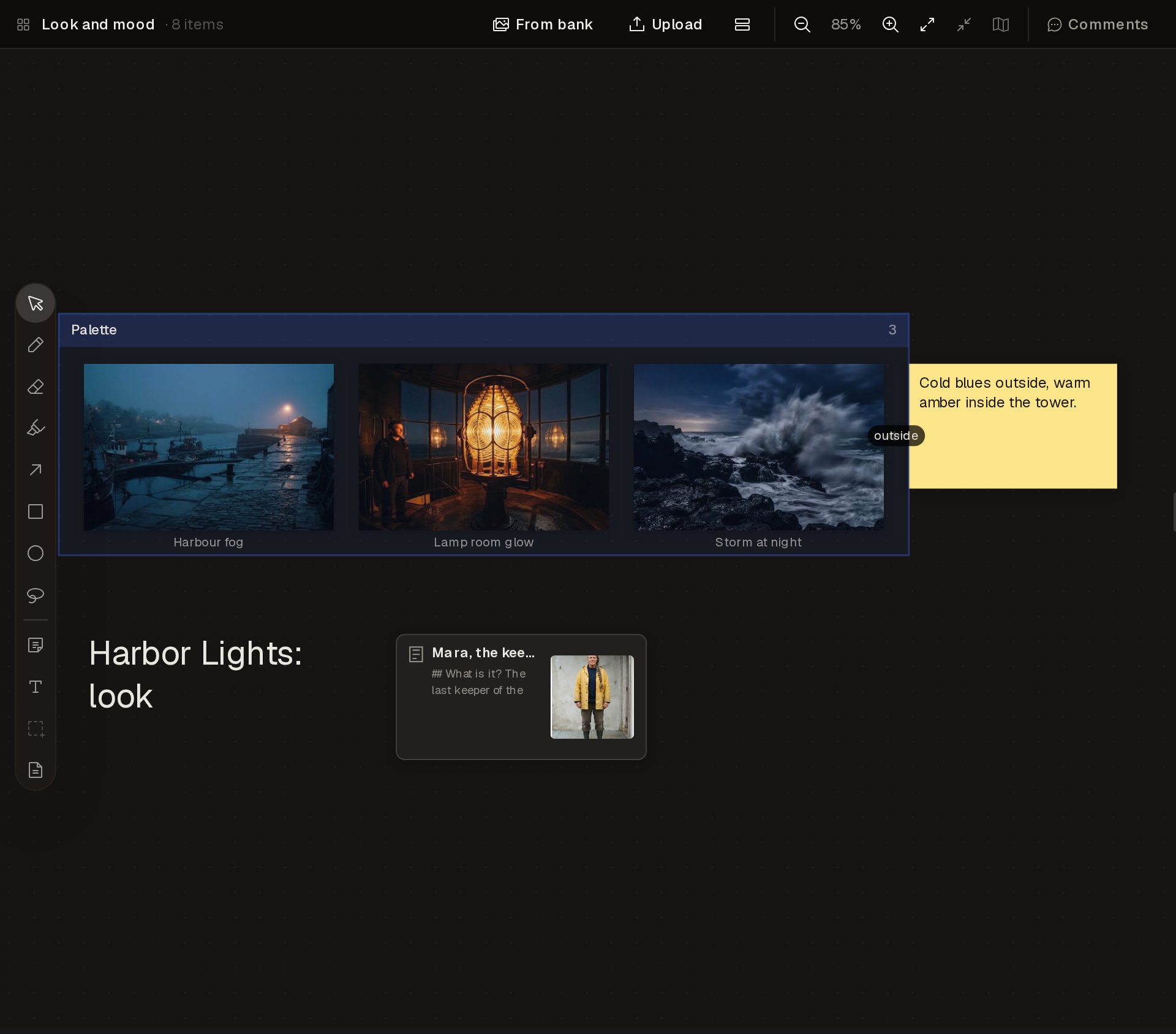
The toolbar at the left of the canvas holds these tools:
- Select picks, moves and resizes items.
- Draw draws a free line.
- Erase removes lines. Hold Shift to erase any item.
- Annotate draws a mark that vanishes after a moment.
- Arrow draws an arrow. Each end can attach to an item.
- Rectangle and Ellipse draw shapes.
- Lasso selects the items you draw around.
Under them are Note, Text, Group and Link document.
A group holds items in a titled frame. Drag an item into a group to add it.
A document card links a document of the project. It shows the title, the first lines of the document and the first picture in its image bank.
The header
Section titled “The header”
- From bank adds a picture from the board’s image bank.
- Upload adds a picture from your computer. You can also drop or paste a picture or a link on the canvas.
- The zoom controls zoom in and out, reset the zoom to 100%, fit the board in view and zoom to the selection.
- Minimap shows a small map of the whole board.
- Comments opens the comments on the board.
Work with Manan
Section titled “Work with Manan”Manan reads a whiteboard group by group: the pictures with their labels and tags, the notes, the text and the arrows. Ask Manan to add pictures, notes or document cards. Manan can also group, label and caption pictures, connect items with arrows and lay out the board.